

Import Tests From TestRail
There are three ways to bring your tests from TestRail into Testomat.io. Pick one by the size of your project and whether you need attachments. Migration from TestRail walks through the whole move step by step.
| Method | Best for | Attachments |
|---|---|---|
| CSV file | Simple import | No |
| Built-in UI tool | Up to 1000 tests | No |
| Migration script | Projects over 1000 tests | Yes |
Start the import process
Section titled “Start the import process”The importing beggins on the Imports window. Thus, you need to go there first.
- Open your project and go to the Tests tab.
- Click the (
…) menu and choose Import from other TMS. - Click Import, then choose Import From TestRail.
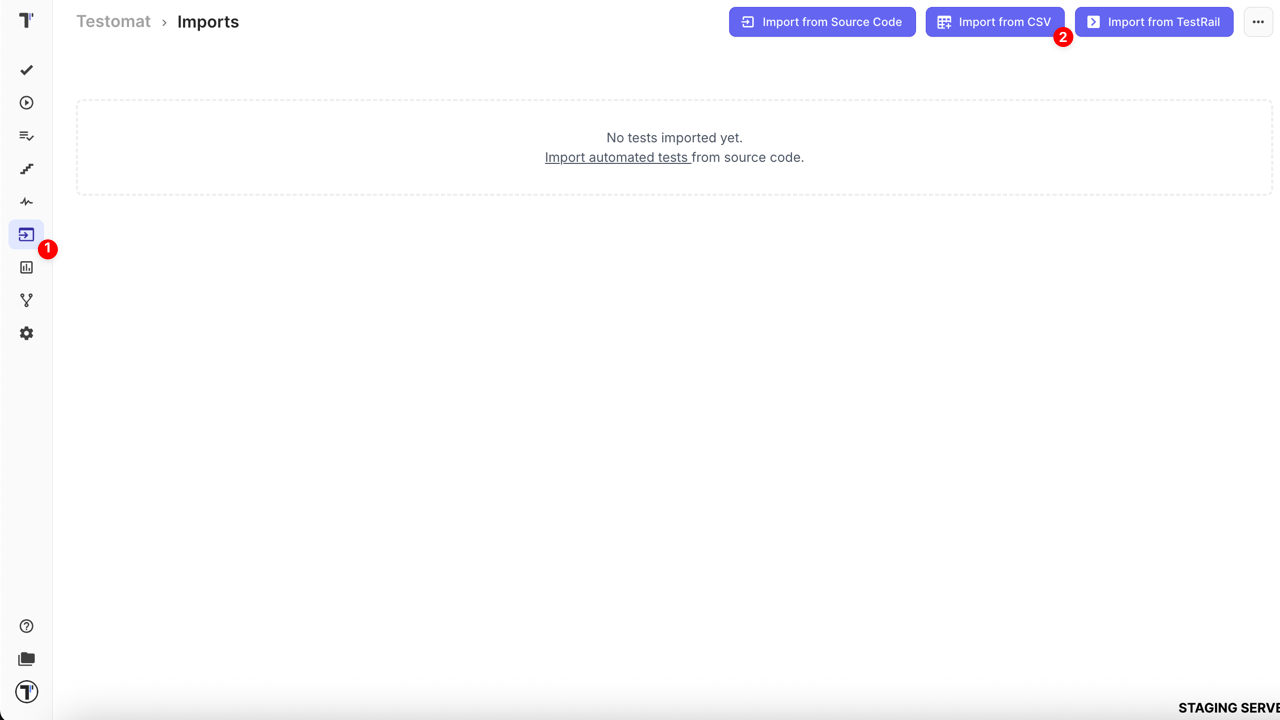
From here, you have three options. Please, choose the best for your project:
- Import Tests from CSV.
- Import via TestRail API.
- Import with the migration script.
Import from CSV
Section titled “Import from CSV”Next, on the Imports window:
- Click Import.
- Choose Import from CSV. A sidebar opens on the right.
- Choose TestRail from the dropdown.
- Click Choose file, select your exported CSV.
- Click Create.
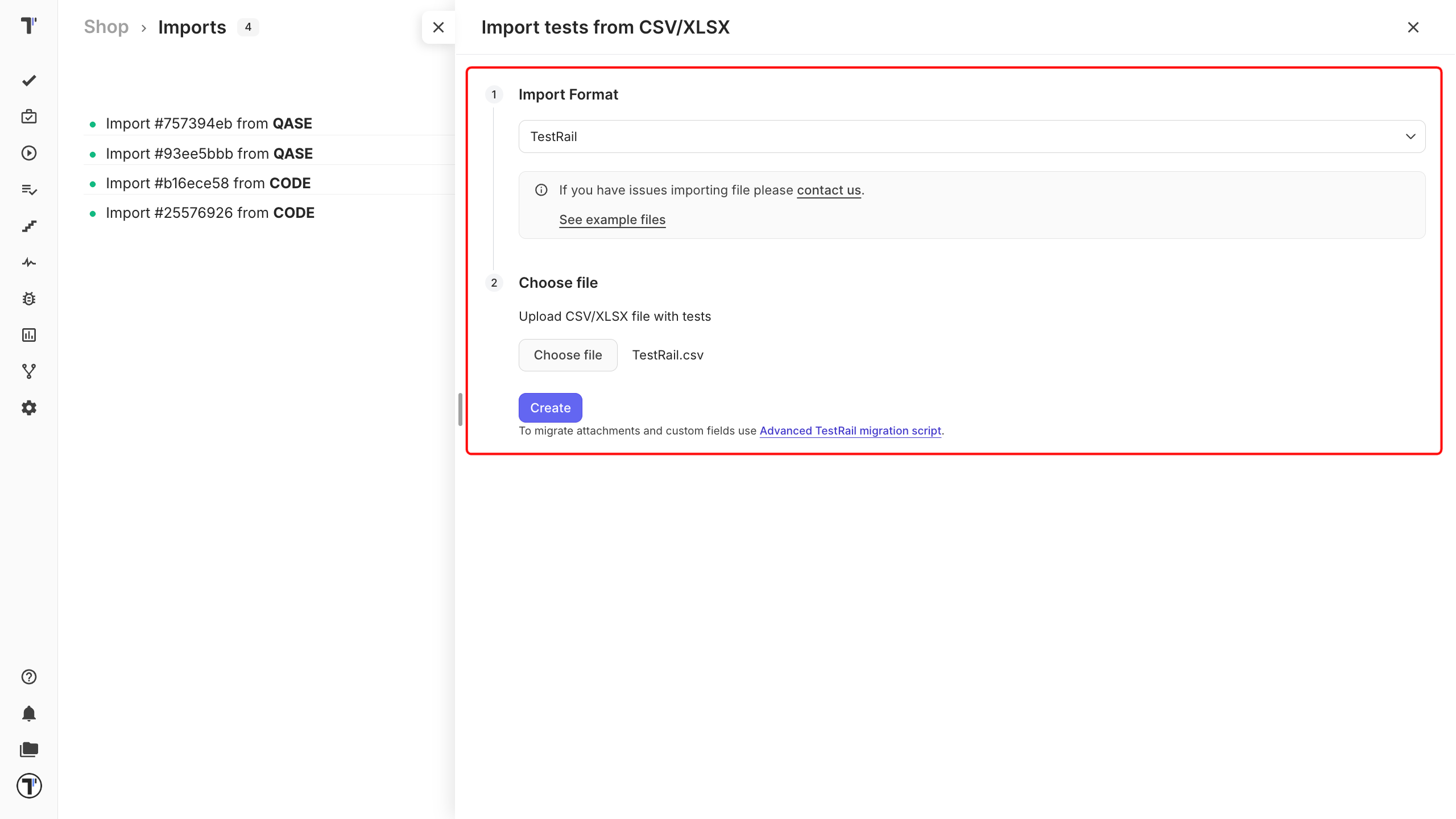
Testomat.io reads the file, and your tests appear on the Tests page.
Not sure your export looks right? Download the sample TestRail CSV and compare the first row with yours.
Import via TestRail API
Section titled “Import via TestRail API”This method pulls your tests straight from TestRail through its API, so there is no file to export.
Next, in the Imports tab in Testomat.io:
- Enter your TestRail API credentials.
- Click Import Tests.
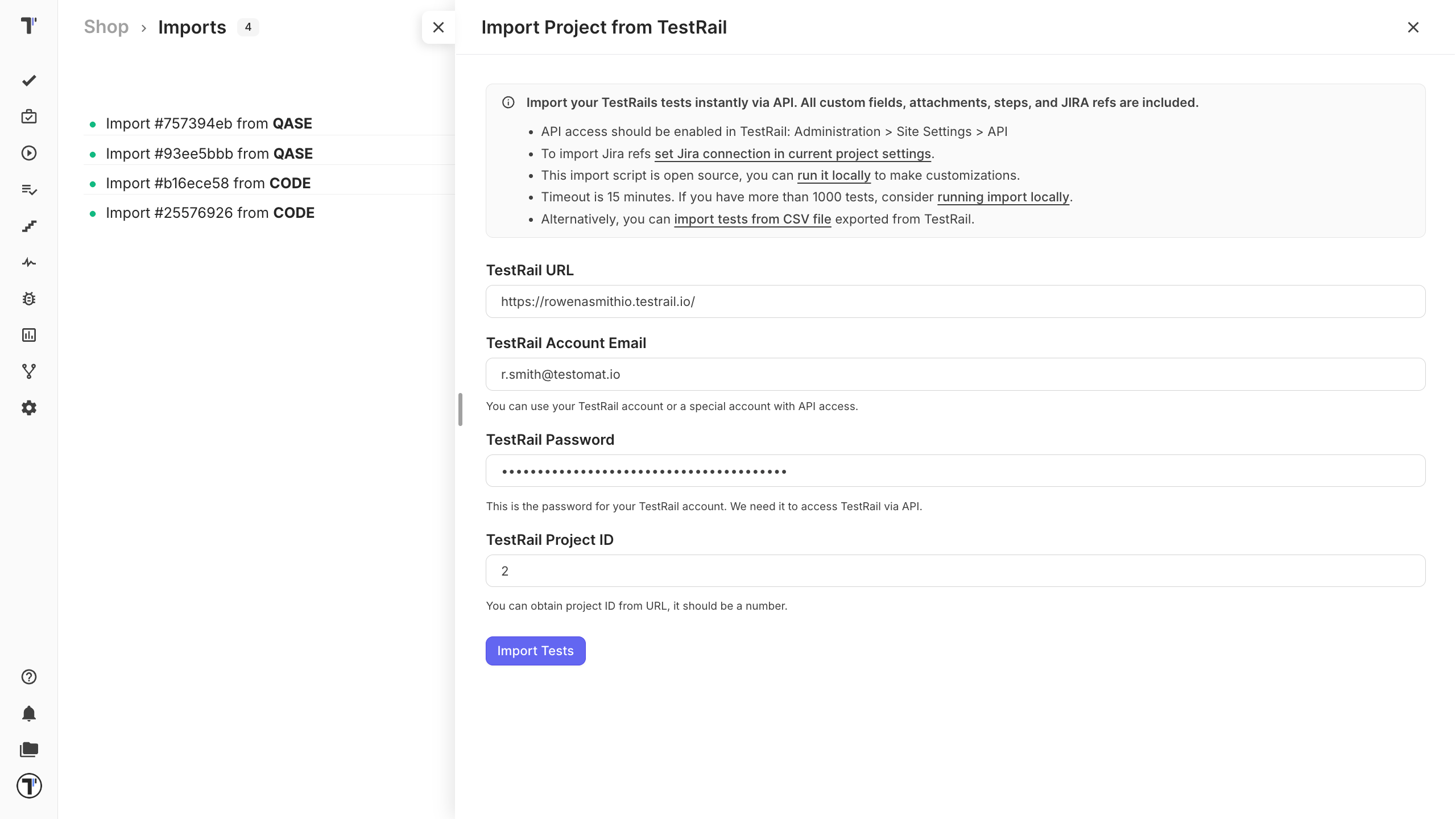
Your tests are pulled across and appear on the Tests page.
Import with the migration script
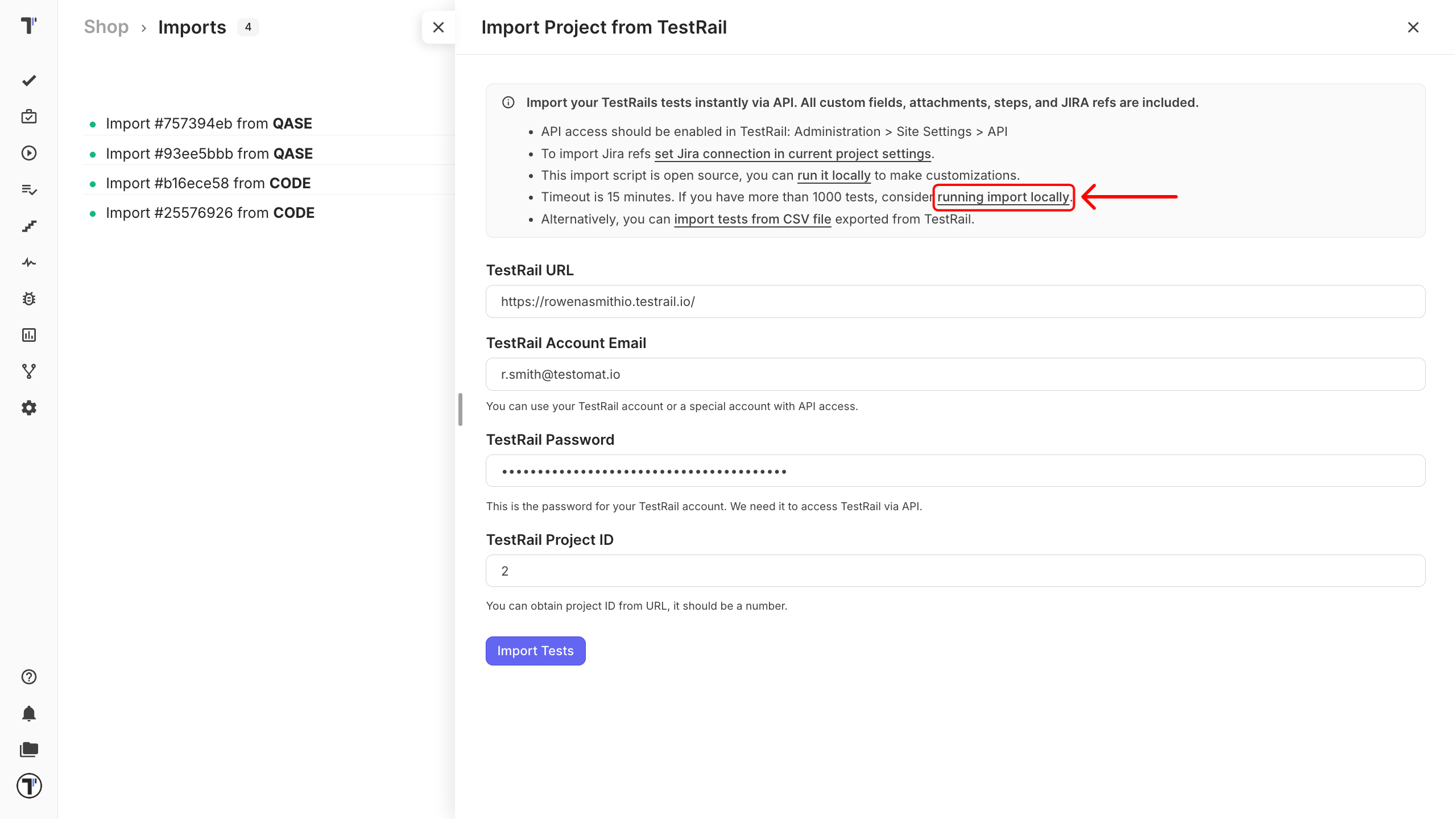
Section titled “Import with the migration script”This option suits for projects over 1000 tests, or when you need to attach files to your tests from TestRail.
- Click Import Locally.
- Follow the migration script instructions.
If this doesn’t work
Section titled “If this doesn’t work”- The UI tool cannot connect. Check that the API is enabled in TestRail.
- The CSV import fails. Check that the first row of your file holds column names.
- Attachments are missing. CSV and the UI tool do not carry attachments. Use the migration script instead.
Next steps
Section titled “Next steps”- Migration from TestRail - the full tutorial, including how to check the result afterwards.
- Import from CSV/XLSX - the column reference and every other supported format.
- Labels and Custom Fields - organize your imported tests by priority, type, or any TestRail field.